
AWS Instance Scheduler: What It Requires and Why Teams Look for Alternatives
Before AWS Instance Scheduler saves a single dollar, someone has to deploy it, tag every instance correctly, and know which resources are worth scheduling. A growing number of teams are turning to automated tools instead, ones that handle detection, scheduling, and savings tracking without the manual setup.
Key Takeaways
- AWS Instance Scheduler requires significant setup: a CloudFormation deployment, schedule configuration in a DynamoDB table, and tagging in every account. And you still have to identify which instances should be scheduled.
- Most AWS environments have 20%+ of instances that are schedulable, running during hours or days when no one needs them, but identifying those instances manually is where most teams stall.
- Automated scheduling only reduces costs if three things happen: you detect which instances to target, you can act on that list quickly, and you can track whether savings actually materialize. Native AWS tooling doesn't handle all three in one place.
Cloud bills tend to grow through accumulation: a development environment spun up for a sprint, a staging server stood up for a release, a handful of EC2 instances supporting a feature that shipped a while back. If the work finishes and nobody clicks stop or sets a schedule, the instances keep running 24/7.
This scenario shows up across engineering organizations of every size, but smaller teams feel it most, since they rarely have a dedicated FinOps role watching spend. And the costs don't get noticed unless they're significant. For teams running on AWS, idle and underutilized instances are typically the largest category of avoidable waste. The good news is that the fix is straightforward: stop paying for compute nobody is using.
AWS's native answer to this is AWS Instance Scheduler. It's worth understanding what it does, what it requires in terms of reporting and resources, and where the tool falls short, because that gap is where most idle instance spend persists and where teams start evaluating an AWS Instance Scheduler alternative.
What Is AWS Instance Scheduler?
AWS Instance Scheduler is a prebuilt solution you deploy into your own AWS environment using CloudFormation templates. The deployment provisions a set of Lambda functions and a DynamoDB table that work together to start and stop instances on schedules you define. It doesn't ship as a built-in EC2 or RDS feature; setting it up is its own project.
Once deployed, managing schedules means editing records directly in the DynamoDB table. For the system to know which instances to act on, every target instance needs the correct tags, a convention that has to be established, documented, and kept current across every team and account that touches infrastructure. Instances spun up without the right tags are invisible to the scheduler.
There's also an ongoing cost. The Lambda invocations, DynamoDB reads and writes, and CloudWatch Events that drive the system all incur AWS charges. They're modest on their own, but they add to the operational overhead of running the system.
For a team with a dedicated cloud engineer who can own the deployment, maintain the tagging discipline, and absorb that operational surface area, this is manageable. For most SMBs running with lean engineering teams, it's a project that stays on the backlog.
The Setup Cost Most Teams Underestimate
The time-to-value problem with AWS Instance Scheduler isn't the deployment itself. Someone can get the CloudFormation stack running in an afternoon. The challenges come after.
Tagging consistency is an ongoing maintenance task. Every team member who provisions infrastructure needs to apply the right tags to each instance and each account for the scheduler to find resources. In practice, this breaks down easily: instances get missed, a team uses a slightly different tag key, or an account gets added and nobody backfills. The scheduler works reliably on the resources it can see, but ignores everything else.
Schedule management through DynamoDB is workable but not built for iteration. As team needs shift, say a team moves to fully remote and no longer needs weekend downtime, or a staging environment starts supporting a customer-facing demo that runs on Saturdays, updating schedules means making direct table edits, which isn't how most engineering managers want to spend their time.
There's also no savings dashboard. The scheduler starts and stops instances, but it doesn't calculate what that's worth or show whether the project is delivering the return that justified the setup effort. Tracking impact means building a separate cost analysis on top of AWS Cost Explorer, with its own maintenance burden.
Where Instance Scheduler Falls Short: Finding Which Instances to Target
Even with deployment and tagging resolved, there's a more fundamental gap: AWS Instance Scheduler requires you to already know which instances should be scheduled. It's a scheduling mechanism, not a detection tool.
Identifying candidates, meaning which instances are idle after business hours, which sit unused all weekend or haven't had meaningful activity in months, requires separate analysis. That typically means pulling CloudWatch metrics, reviewing Cost Explorer, or running a manual account-by-account audit. For a small team, this analysis often doesn't happen, not because it's technically difficult, but because it requires time that keeps losing out to product work.
What happens is teams know they have idle instances, and some even have Instance Scheduler deployed, but the list of what to actually schedule never gets built. This step is where most organizations get stuck. Idle compute keeps running and charges keep accumulating.
How Kalos Waste Management Handles Detection, Scheduling, and Tracking Together
Kalos Waste Management is built around the step where most teams stall: identification. Rather than requiring a list of instances to schedule, Kalos automatically analyzes utilization data across your instances (using a configurable lookback window of 30, 60, or 90 days).
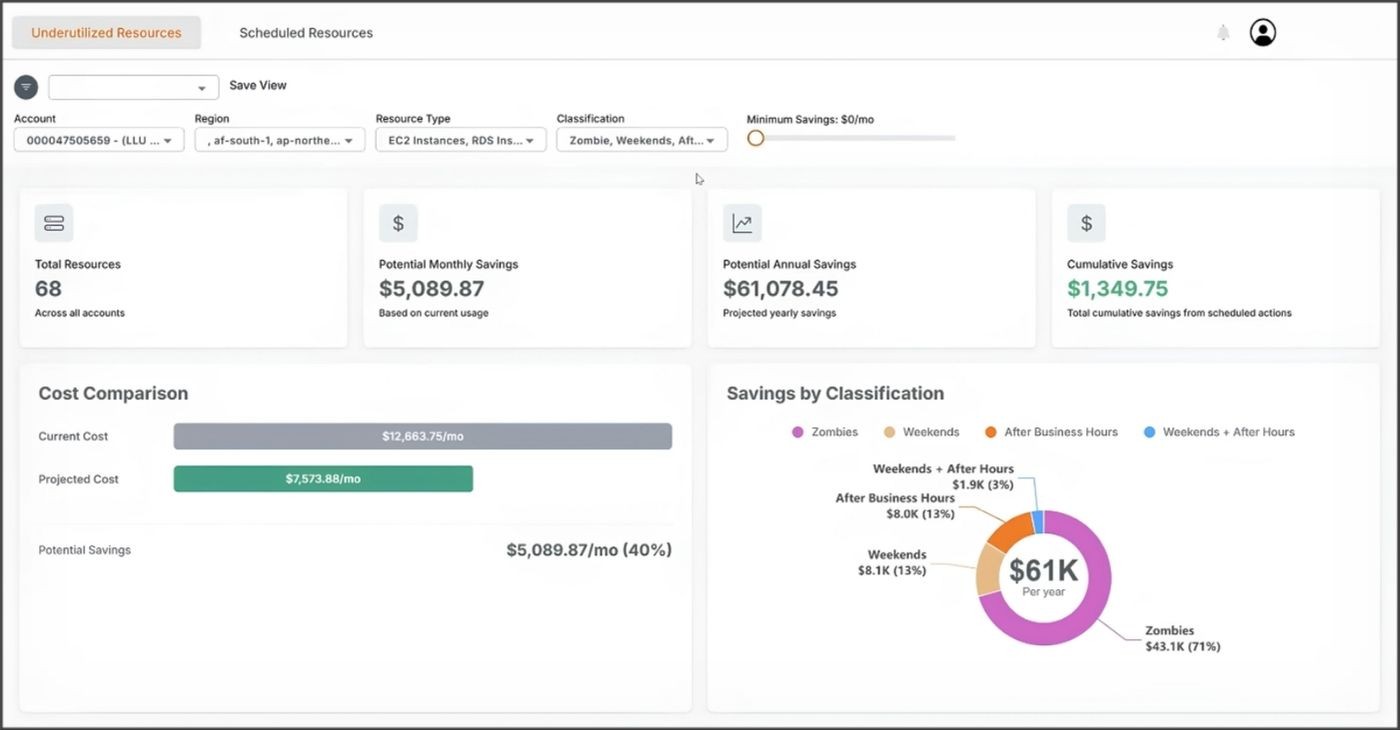
Based on those usage patterns, each resource gets classified into one of four categories:
- Zombie: Near-zero utilization across the entire analysis period. These are effectively forgotten instances still accruing charges with no active workload behind them. In most environments, zombie instances represent the fastest recoverable cost.
- After Business Hours: Instances active during the workday with no meaningful activity during evenings and nights.
- Weekends: Resources idle every Saturday and Sunday.
- Weekends + After Hours: Instances only needed during business hours on weekdays, a common pattern for dev and staging environments.
Each classification includes a confidence score reflecting the statistical certainty of the analysis, so the dashboard can be filtered by confidence threshold and minimum monthly savings to surface the highest-impact opportunities first.
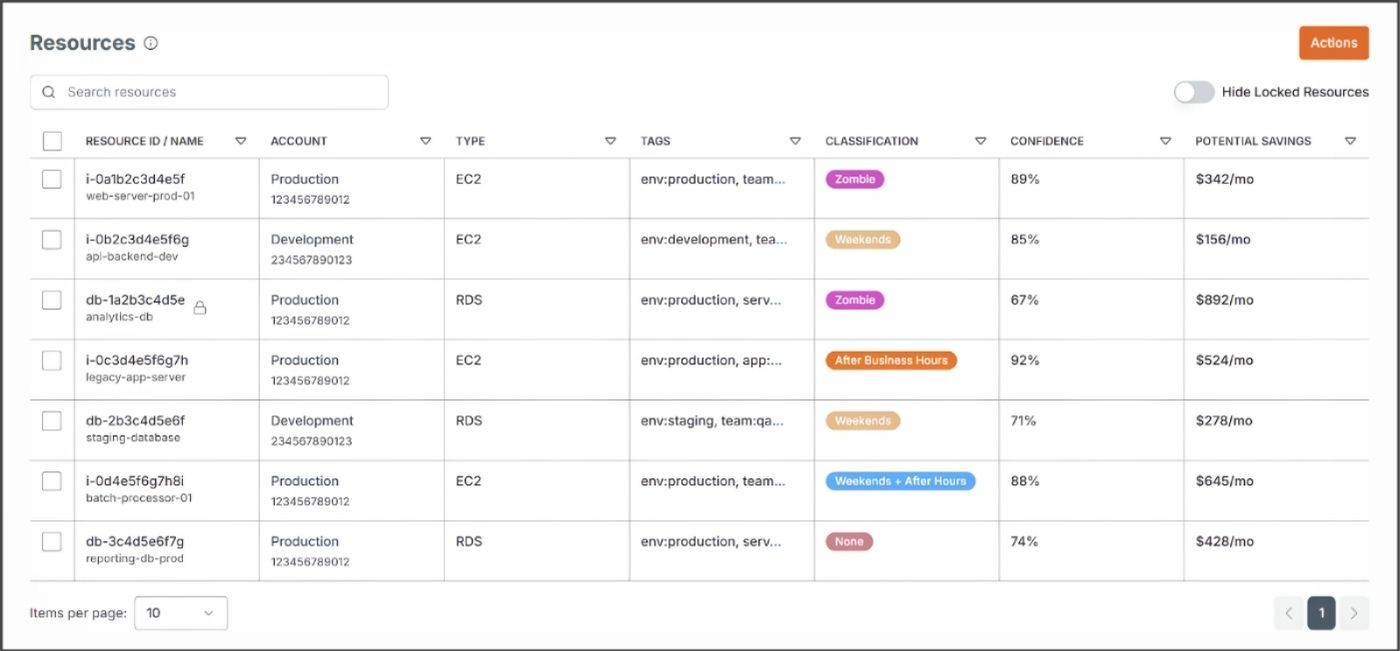
Across typical AWS environments, 20%+ of instances fall into one of these categories and are immediately actionable, supporting the cloud cost reduction case for the feature.
From Detection to Active Schedules, Automatically
Once the dashboard surfaces which resources are underutilized and classifies them according to a schedule, starting the schedule is a one-click action from the same interface. There's no CloudFormation stack to deploy, no DynamoDB edits, and no tagging convention to establish or enforce.
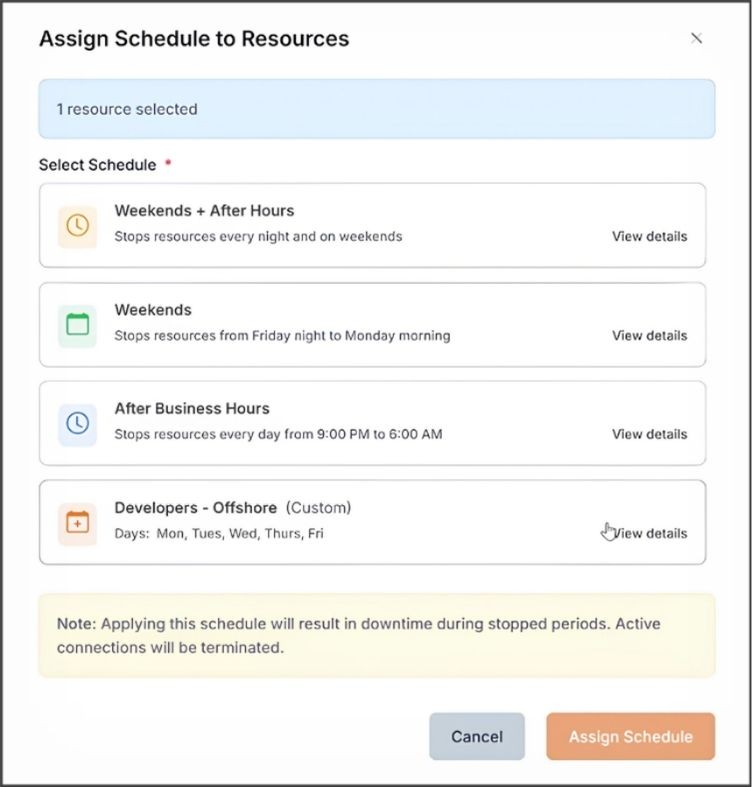
Kalos includes predefined schedule templates for the most common patterns (After Business Hours, Weekends) and lets you build custom schedules with per-day granularity and timezone support, which matters for teams distributed across regions. Assigning a resource to a schedule is a single action; from there, Kalos manages automated start and stop without further configuration.
The system includes guardrails by design, too. Every stop action must be paired with a corresponding start time, so automation can't leave resources in an unintended stopped state. High-impact actions on Zombie resources, including immediate stopping and termination, require explicit administrative enablement before they're available to any user, so the system won't touch infrastructure it shouldn't without deliberate authorization.
Schedules can be paused or adjusted as workload requirements shift. A staging environment that moves into a customer-facing role doesn't need a separate process to update its schedule; it's a simple change made in the same dashboard where the schedule was created.
Production Infrastructure Is Excluded From Analysis by Default
A reasonable concern with any automated waste detection system is whether it will flag infrastructure it shouldn't touch. Waste Management handles this through Exclusion Rules, which let you define exactly which resources are excluded from analysis and scheduling entirely. Excluded resources don't appear in the dashboard at all.
Rules can be scoped by resource type, AWS account, or tag, for example env=production or criticality=high, and multiple criteria can be combined. This means the savings estimates the dashboard shows reflect only genuinely schedulable infrastructure, without noise from resources that were always going to stay running.
Setting exclusion rules is typically a one-time configuration task at the account or environment level, and it can be done before the system surfaces its first set of results.
Track Cumulative Savings Without a Separate Cost Analysis
The dashboard shows potential monthly and annual savings across all flagged resources, along with cumulative savings since Waste Management was first enabled. Once resources are on a schedule, the Scheduled Resources view tracks realized savings per resource based on actual scheduled downtime, not estimates.
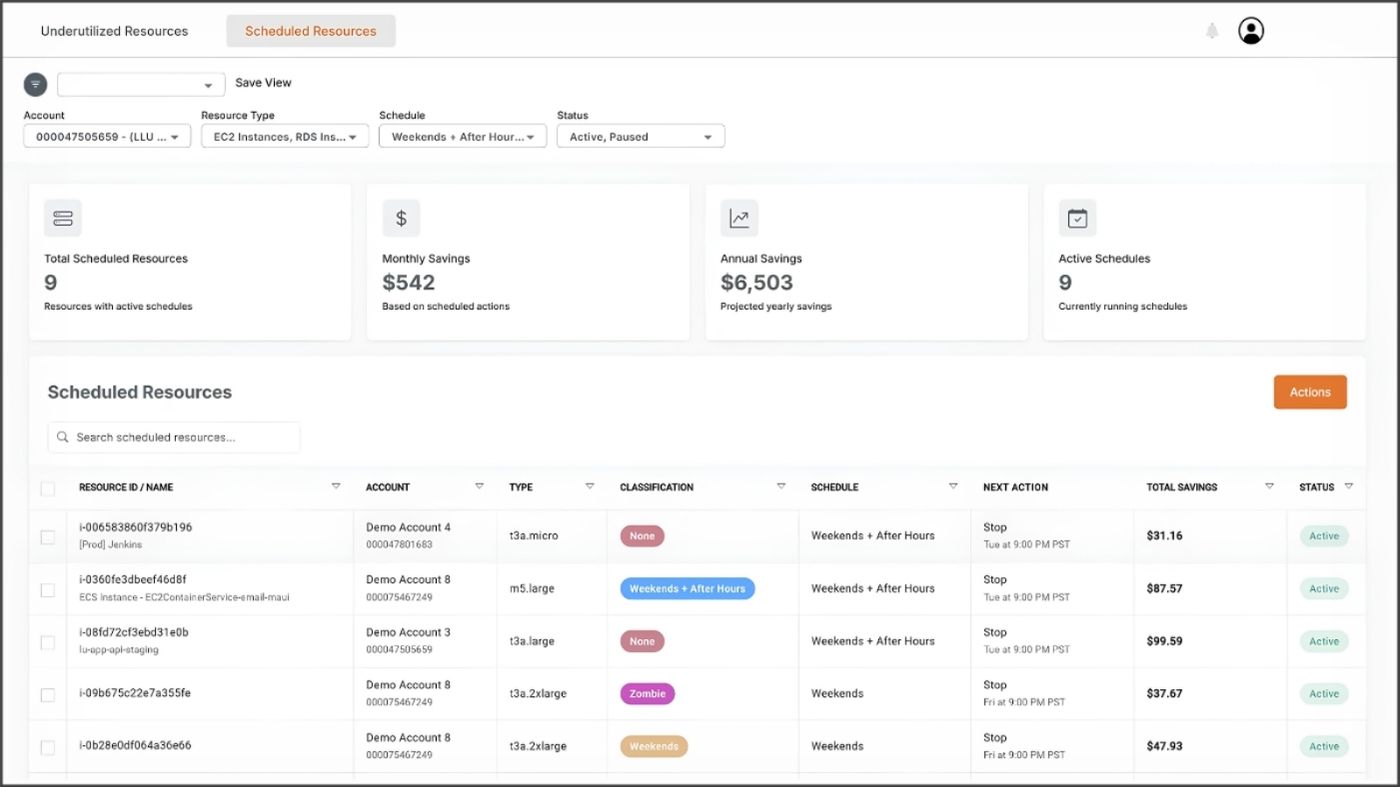
For most teams, the alternative is constructing a custom analysis in AWS Cost Explorer or estimating savings manually, both of which take separate effort and tend to drift from reality over time. Having savings tracked automatically alongside the resources generating them makes the ROI of the scheduling work visible to whoever needs to see it, whether that's engineering leadership, finance, or anyone asking whether the cloud cost reduction effort is producing results, and it keeps that work prioritized since it can be quantified.
Getting Started
Waste Management is available for Kalos customers under Cost Optimization in the platform. After enabling the feature, the system begins classifying resources within 24 hours, with no deployment and no tagging convention to set up first.
If you're not yet a Kalos customer and want to understand what your current idle instance exposure looks like, request a free trial and we'll walk through the analysis and recommendations with you.
FAQs
The solution itself has no license cost, but you still pay for the Lambda invocations, DynamoDB usage, and CloudWatch Events that run it, plus the engineering time to deploy and maintain it.
Yes, but each account needs its own deployment and tagging convention. Managing consistency across accounts is a manual process unless you build tooling on top of it.
Only by building it yourself. The service doesn't include native notifications, so teams typically wire up CloudWatch alarms or SNS separately.
Kalos is a full replacement of AWS Instance scheduler. Waste Management automatically handles detection, classification, scheduling, and savings tracking in one workflow, so there's no need to manage or update any tags, handle any scripts, or maintain a separate CloudFormation deployment.
Find idle waste in your environment free >>
Further Reading
Everyone Says AWS Cost Optimization Is Easy. Here’s What They’re Not Telling You.
Why common AWS savings tactics often require more analysis and upkeep than expected.
How Cloud Optimization Strategy Should Differ for Small vs. Large Companies
Optimization priorities change with cloud spend, team size, and internal resources.