Introducing Security Remediation: Fix AWS Compliance Findings Automatically, On Your Terms
Most compliance dashboards are very good at one thing: telling you what's wrong.
You open the dashboard, sort by critical, and scroll. Unencrypted buckets. Security groups open to the world. Log groups nobody turned logging on for. So you make a ticket. Then a deploy goes sideways, someone gets paged, and the ticket waits. Next month the list is longer.
For lean teams, finding problems was never the hard part, but fixing them is a real productivity drain. Every finding means opening the right console, changing the right setting, wondering whether it breaks something, and leaving a note for whoever asks later. Now do that across every account and region, essentially every month.
That's the gap Automated Security Remediation closes. It brings automated security remediation into Kalos, so you can fix compliance findings one resource at a time, hundreds at once, or automatically every day. Every change is logged, reviewable, and reversible.
What is automated security remediation?
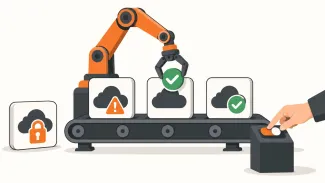
Automated security remediation means correcting cloud misconfigurations automatically, instead of only reporting them. A compliance check flags a problem, such as an unencrypted bucket, a security group open to the internet, or logging that was never turned on. A predefined fix is then applied and the change is recorded.
The value is speed and consistency. Misconfigurations don't stay fixed on their own: every new resource can reintroduce one, so a manual cleanup starts aging the day it's done. Automation catches those as they appear.
The risk is changing something production depends on. That's why good remediation tooling comes with guardrails: control over what gets fixed and where, an approval step for sensitive changes, a record of every change, and a way to roll it back.
Kalos for automated security remediation
- Bulk remediation. Select the failing resources or checks, configure the fix once, and apply it across accounts.
- Automation rules. Point a rule at a security check and it runs daily, fixing new violations as they appear.
- Approval controls. Require sign-off globally or per rule. Queued fixes wait for you in a Pending Approval list.
- Resource locking. Keep specific resources out of manual and automated remediation entirely.
- Audit trail with revert. See the before and after state of every change, who or what made it, and roll it back if you need to.
Fix a hundred findings like you'd fix one
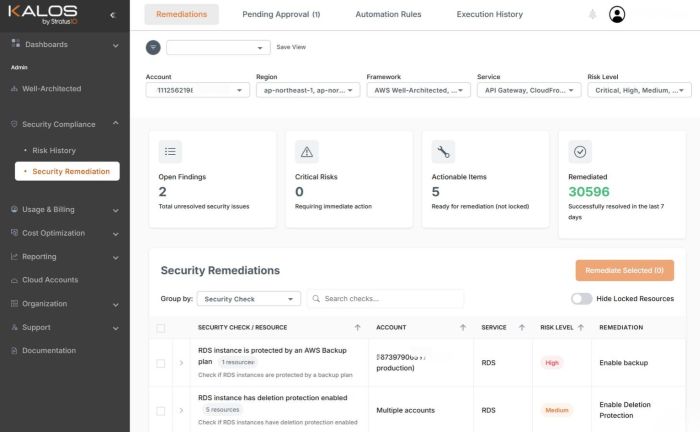
Start on the Security Remediation dashboard. It shows your open findings, critical risks, what's actionable right now, and what's been remediated in the last seven days.
Filter by account, region, framework, AWS service, or risk level. Group by resource if you're cleaning up one environment, or by check if you want to stamp out one problem everywhere it exists.
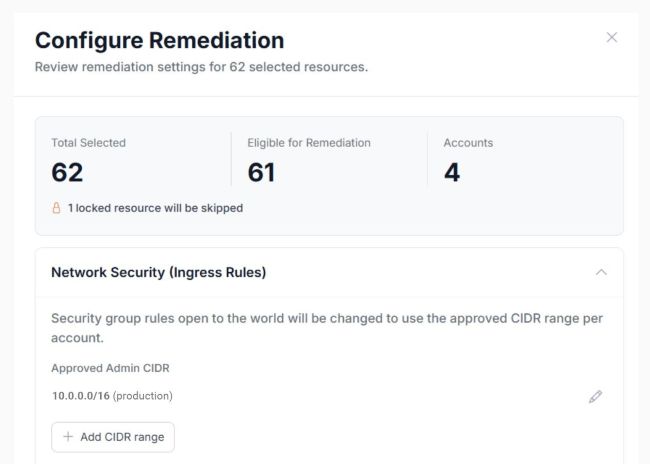
Then select what you want to fix and click Remediate Selected. Before anything changes, you see how many items you picked, how many are eligible, and how many accounts they touch. If a fix needs input, like which CIDR ranges to allow or how long to keep backups, you set it once in the same drawer.
One review. One click. Done across every selected resource.
Let rules handle the repeat offenders
Cleanup is satisfying....but it's also temporary.
Someone spins up a new bucket on Thursday, and it doesn't have encryption. Without automation, you find out at the next review. With an automation rule, it gets fixed the next day.
A rule takes about a minute to set up. Name it, scope it by account and region, choose the service and the security check it targets, and decide whether it needs approval. Rules run daily. The rules table shows who created each one, when it last ran, and how many resources it has fixed so far. Pause any rule with a toggle.
You decide what to automate
Automatic fixes are only useful if you're comfortable letting them run. So you set the level of control.
Turn on Require Manual Approval in settings and every automated fix goes to the Pending Approval queue first. Review what's waiting, approve the batch, or decline anything that shouldn't change. Decline leaves the resource untouched.
Rules can override the global setting. That lets you auto-fix low-risk items like enabling logging, while anything touching network access still waits for a human.
And some resources should never be touched by automation. A legacy system with a fragile config. A security group a vendor depends on. Lock those, and they're excluded from both automated rules and bulk remediation. A toggle hides locked resources from view, so they don't clutter your list.
Every change leaves a record, and an undo
Auditors ask what changed and when. Teammates ask who did it. Execution History answers both.
Every remediation is logged with its status, the account, region, and ARN, the exact time, and whether a person or a rule triggered it. Expand a row to see the resource's state before and after. If something failed, you see why, down to the specific error, such as an IAM access denial.
If a fix causes trouble, select it and click Revert Selected to restore the previous configuration. If the resource is covered by an automation rule, lock it first so the next run doesn't reapply the fix.
What it covers, and what it doesn't
Security remediation fixes configuration. It doesn't detect active threats, unusual API activity, or intrusions. GuardDuty is still the right tool for that, and the two work well side by side.
We started with the fixes that are safe to automate: turning on logging and encryption, closing overly open network access, adding alarms and backup protection. That's on purpose. A change that quietly breaks production is worse than a finding that sits open another week, so coverage stays conservative. Before you commit, the Eligible count shows exactly which of your selected findings can be fixed.
Getting started
Open Security Compliance and go to Security Remediation. If this is your first time, we'd suggest a conservative start:
- Turn on Require Manual Approval globally.
- Lock anything you already know shouldn't change.
- Create one rule for a low-risk check, like enabling logging.
- Watch Execution History for a week.
- Loosen approval on the rules you trust.
Within a few weeks, the findings that keep coming back stop coming back.
Not using Kalos yet? Start a free trial. Security Remediation is included in the trial, so you can see what's fixable in your own AWS environment.